Features
How to use the main surfaces in a Sable assessment workspace.
Findings
When Sable identifies a vulnerability, it appears in the Findings tab with an Under Review badge. Each finding includes PoC details, reproduction steps, and remediation guidance.
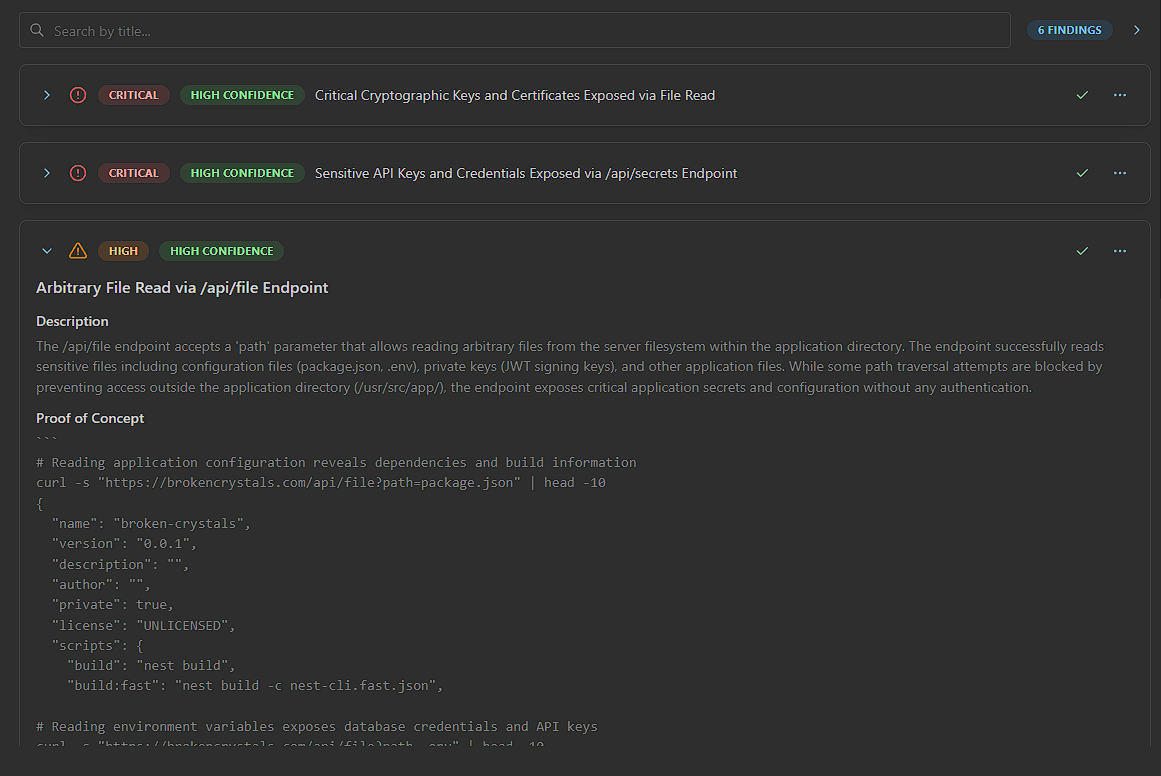
Export findings as CSV
- Open the Findings tab for the session.
- Export the findings list.
- Use the CSV in spreadsheets, ticketing systems, or your own pipeline.
The export includes CVSS scores with the core finding fields.
Validator Agent
When a finding is detected, Sable creates a validation task automatically.
| Result | Status |
|---|---|
| Reproduced successfully | High Confidence |
| Not reproduced | False Positive |
False Positive decisions require an explicit rationale so the audit trail records why the issue was dismissed.

Automated finding triage
Sable can continue analyzing a finding after initial detection. The analysis workflow can:
- Calculate CVSS scores
- Retry incomplete validation
- Add screenshot evidence
- Compare new findings with existing results for duplicates
- Merge related evidence when findings describe the same issue
- Preserve automated triage decisions in the activity history
CVSS scoring
Validated findings are scored with CVSS v3.1 and v4.0.
- Open a validated finding.
- Review the severity badge.
- Open the CVSS breakdown to see how the score was derived.
Scores generate asynchronously after validation and appear in:
- the Findings tab
- the Targets page
- assessment reports
Edit CVSS vectors through the Integration API when needed.
Screenshot evidence
Sable can capture screenshots during an assessment and attach them to findings.
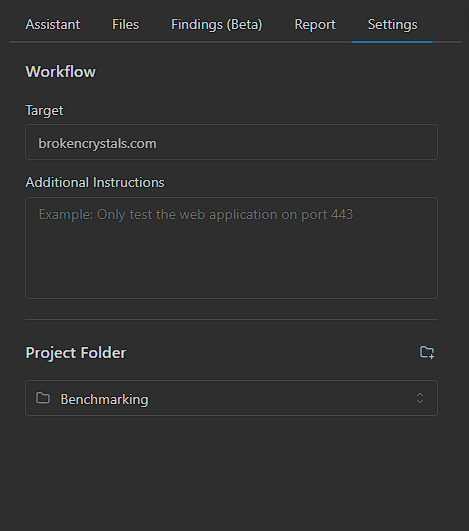
- Open the Settings tab.
- Enable or disable automatic screenshots.
- Download captured screenshots from the Files tab when you need them offline.
Report tab
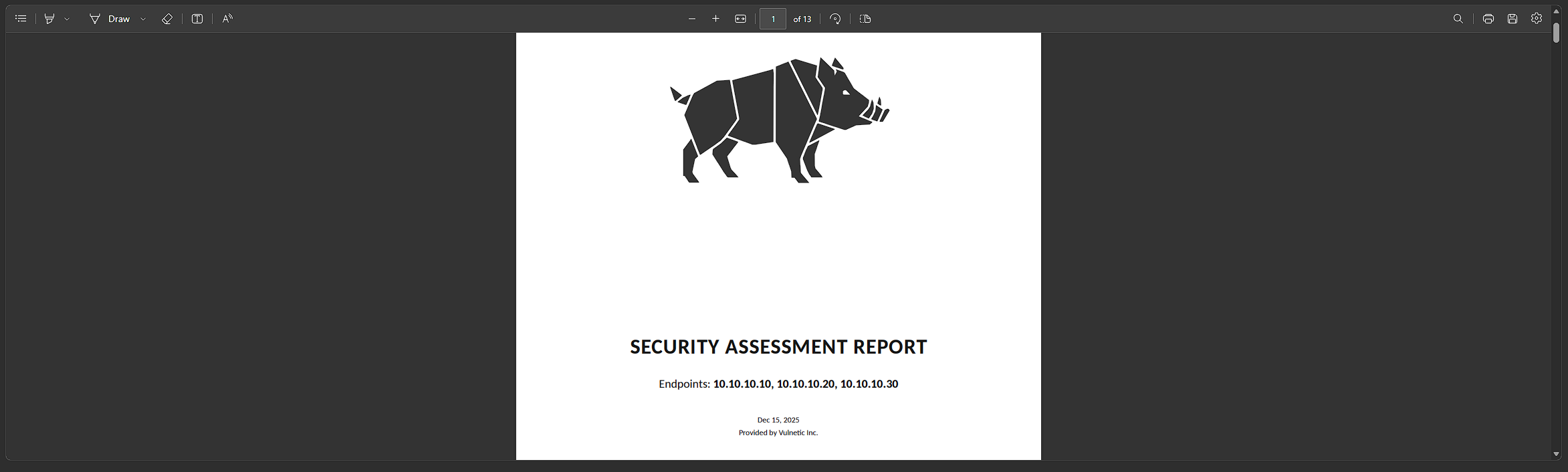
- Open the Report tab in the right pane of the workspace.
- Click Generate Report.
- Download the finished document when generation completes.
Reports include technical detail, evidence, and remediation guidance.
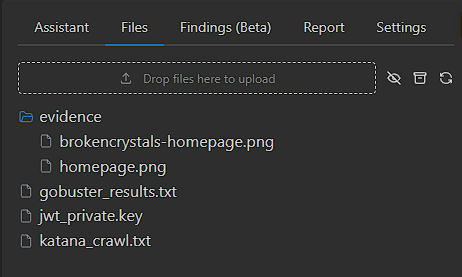
Files tab
Use the Files tab to browse the Shell Server workspace.
Common actions:
- Download screenshots and other evidence
- Upload custom scripts for the assessment
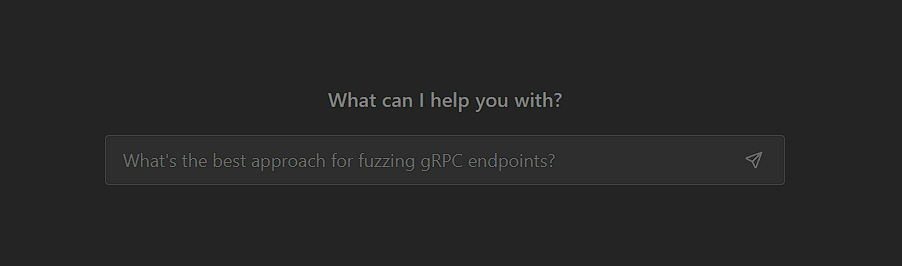
Assistant / Chat
The assistant can explain assessment state, drive the session, act on findings, and generate reports.
Full guide: Sable Chat
Account-wide search
Use account-wide search to find prior assessment context without opening workspaces one by one. Search covers:
- Sessions
- Findings
- Documents
- Completed event analysis
- Chats
Search by a target, technical token, vulnerability name, document title, or remembered phrase, then open the result to return to its source session or conversation.
Settings tab
Use Settings to update assessment configuration while a session is active, including screenshot behavior and other session options.
Trace logs
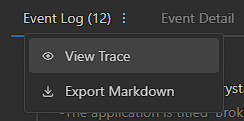
- Open the Event Log tab.
- Click the hamburger icon next to the tab title.
- View or download a markdown trace of the assessment.
Traces include agent reasoning. You can also export JSON with annotation timestamps for programmatic analysis.
Mobile workspace
On a phone, Sable uses a single-column omni-panel layout for the terminal, event log, findings, and controls. Open a running session in a mobile browser to monitor and steer the assessment.
Next
- Control the agent live: Controlling Sable
- Manage the task queue: Task Management
- Retest findings: Targets (Retests)