Shell Server Troubleshooting
Having issues with the Shell Server? Check these common problems and solutions.
For setup instructions, see the Getting Started guide.
Common issues
Server not running - Ensure Docker is installed, then choose one setup option: - Profile page: Open your Profile from the Dashboard, expand Connect a Shell Container, and copy the ready-to-run relay command. - Manage containers: Click the gear icon, open Manage containers, expand Connect a Shell Container, and copy the ready-to-run relay command.
Paste the relay command into a terminal and run it as provided. The pairing code is already included; do not add or replace anything. Then confirm the container appears as connected.
The relay command can run anywhere Docker is available, including an AWS instance or virtual machine, as long as the environment has outbound internet access.
Pairing code expired - Return to the same setup option, copy the refreshed ready-to-run command, and run it again.
Second container on the same device
- Use either setup option to copy the additional container’s command. Before running it, change the named volume from sable-shell-data to a unique name.
For example, change the volume name to sable-shell-data-client-b. Do not change the pairing code already included in the copied command.
Reusing one volume for two containers can mix their runtime state and prevent them from operating correctly. Reuse a volume only when restarting the same logical container.
Port conflicts - Relay mode does not require you to expose port 8001. If you are using local port mode instead, another service might be using port 8001. You may see an error like this:
$ docker run --rm --network host --pull always --user root ghcr.io/vulnetic-inc/shell-container:latest
INFO: Started server process [1]
INFO: Waiting for application startup.
INFO: Application startup complete.
ERROR: [Errno 98] error while attempting to bind on address ('0.0.0.0', 8001): [errno 98] address already in use
INFO: Waiting for application shutdown.
INFO: Application shutdown complete.
Legacy browser blocking - Browser local network restrictions only apply to the old local WebSocket connection. New Shell Server sessions should use the ready-to-run relay command copied from the Profile page or Manage containers.
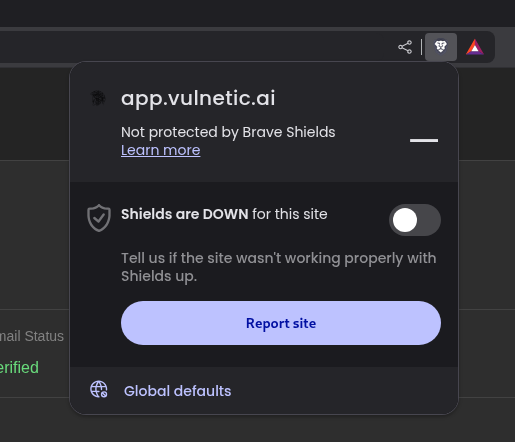
If you are using old local port mode, some browsers (notably Brave) can block the connection between the Shell Server and app.vulnetic.ai. To resolve this, turn off Brave Shields by clicking the Brave icon in the top-right of the browser and toggling Shields off for app.vulnetic.ai.
Chrome 142+
- Chrome 142 and later versions may block local network access when using old local port mode. If you experience connection issues in local port mode, grant permission via Chrome settings:
1. Go to Chrome → Settings → Privacy and Security → Site Settings → Local network access
2. Add app.vulnetic.ai to allowed sites
Legacy Port Forwarding
Relay mode replaces SSH port forwarding for new Shell Server sessions. You can run the relay container on an internal host, AWS instance, or virtual machine as long as it has outbound internet access.
If you are using old local port mode and want to run the shell container on an internal network device while accessing the dashboard from a different machine, you can use SSH port forwarding to tunnel the connection.
Run this command on the machine where you'll access the dashboard:
ssh -L 8001:localhost:8001 <internal_device_username>@<internal_device_ip>
Setting Up SSH on the Internal Device
Windows
-
Enable OpenSSH Server:
- Go to Settings → Apps → Optional Features → Add a feature
- Search for OpenSSH Server and click Install
-
Start and configure the SSH service (run in elevated PowerShell):
Add-WindowsCapability -Online -Name OpenSSH.Server~~~~0.0.1.0
Start-Service sshd
Set-Service -Name sshd -StartupType Automatic
Linux
Start the SSH service:
sudo systemctl start ssh
To enable SSH on boot:
sudo systemctl enable ssh
Disabling Responder
The shell container includes a built-in Responder service that auto-starts by default. If you want to disable this behavior, you have two options:
Using the Command Line Flag
Pass the --no-responder flag when starting the container:
Append --no-responder to the ready-to-run relay command copied from Sable. Leave its included pairing code unchanged.
Using an Environment Variable
Set the RESPONDER_AUTOSTART environment variable to false:
Add -e RESPONDER_AUTOSTART=false before the image name in the ready-to-run relay command. Leave its included pairing code unchanged.