Getting Started
Run your first Sable pentest in four steps.
Prerequisites
- Create an account.
- Install Docker.
1. Start the Shell Server
The Shell Server is a Docker Linux runtime with pentest tools. Sable runs assessments through it.
Choose either setup option. Both provide a ready-to-run Docker command with the pairing code already included.
Option 1: Profile page
- Open your Profile page from the Dashboard.
- Expand Connect a Shell Container.
- Copy the relay command shown there.
Option 2: Manage containers
- Click the gear icon and open Manage containers.
- Expand Connect a Shell Container.
- Copy the relay command shown there.
Paste the relay command from the option you chose into a terminal and run it as provided. The pairing code is already included; do not add or replace anything.
The sable-shell-data Docker volume persists the container’s data at /data across restarts. The --rm flag removes the stopped container but does not delete the named volume.
You can run this anywhere Docker is available (local machine, AWS, or a VM), as long as the host has outbound internet access and can reach your target.
Confirm the Shell Server shows as connected on your profile or dashboard.

Name the container
Use a descriptive name when you have containers for different clients, networks, or execution environments:
- Click the gear icon in Sable.
- Open Manage containers.
- Click the current container name under Server.
- Enter a name that identifies where or for whom the container runs.

Use a different volume for a second container
When you deploy another Shell Server on the same device, change sable-shell-data to a unique volume name such as sable-shell-data-client-b. Two containers on the same Docker host must not use the same volume. Reuse the original volume only when restarting the same logical container.
If pairing fails, see Shell Server Troubleshooting.
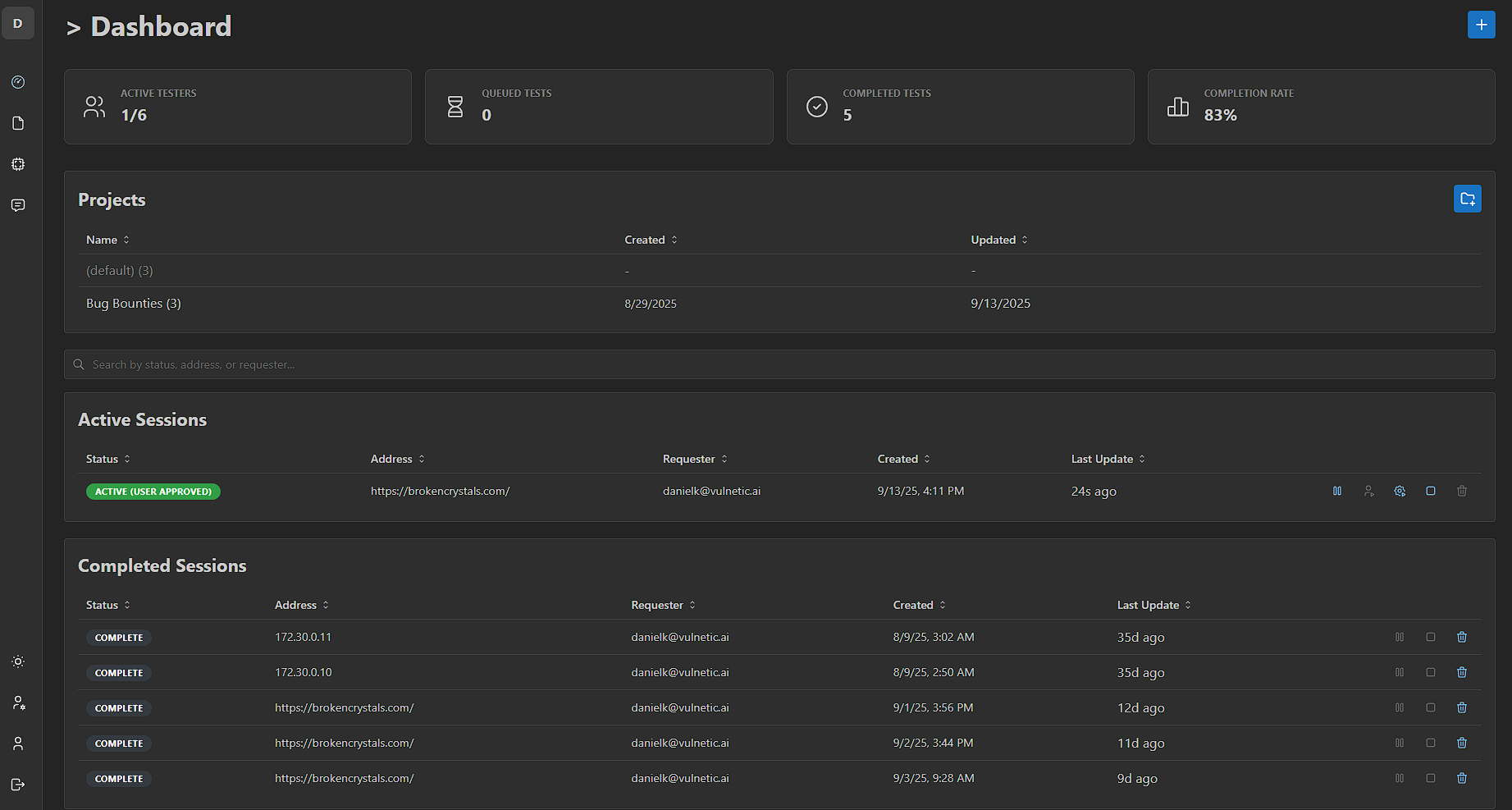
2. Open the Dashboard
- Go to app.vulnetic.ai.
- Open the Dashboard from the sidebar.
The Dashboard is where you create, start, and organize assessments into projects.
3. Configure the assessment
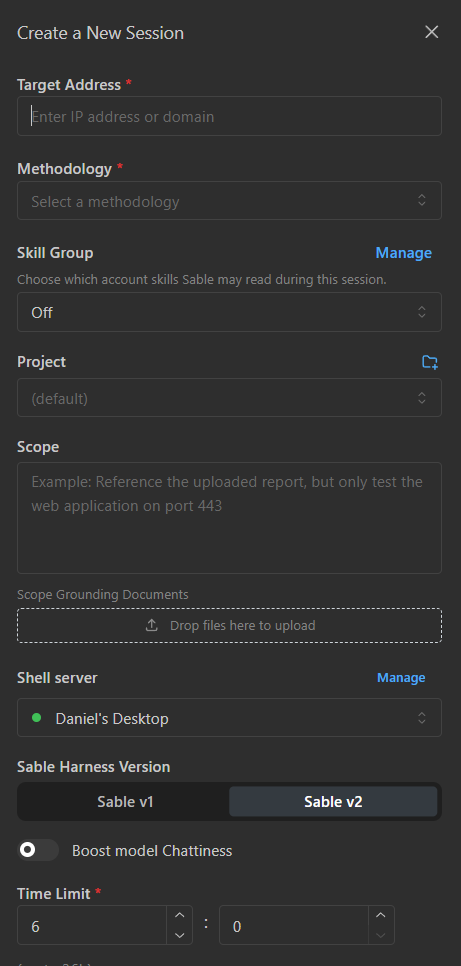
- Click the + icon in the top-right of the Dashboard.
- Enter the Target Address: a domain, URL, IP address, subnet, or endpoint reachable from the Shell Server host.
- Select the required Methodology.
- Under Skill Group, choose Off, All Skills, or a named group. See Skills and Skill Groups.
- Assign a Project or create one with the folder icon (optional).
- Add the Scope: credentials, out-of-scope items, rate limits, and any rules Sable must follow.
- Upload Scope Grounding Documents when the assessment needs supporting requirements, reports, or reference material.
- Select the connected Shell server.
- Choose the Sable Harness Version and configure optional model settings such as Boost model Chattiness.
- Set the Time Limit, review the remaining session settings, confirm authorization, and start the session.
Testing a target that uses MFA
Use a dedicated test account and only provide authentication material that you are authorized to use. Choose the handoff that fits the target:
Provide a current MFA code through Steer
- Put the username, password, login URL, and authentication instructions in the assessment scope.
- Start the assessment and wait for Sable to reach the MFA prompt.
- Open Steer and provide the current code with a short instruction such as
Use MFA code <CURRENT_CODE> to finish the test-account login. - Send a replacement through Steer if the code expires before it is submitted.
This is the best option for normal short-lived authenticator codes because the code reaches Sable only when it is needed.
Extend the code lifetime for the test account
If you control the target’s test environment, temporarily increase the MFA-code expiration window, generate a code for the dedicated test account, and include the code and its expiration time in the assessment scope. Keep the window only as long as the assessment requires, and restore the normal expiration setting afterward.
Do not weaken MFA settings for production users or other accounts to support a test.
Provide an authenticated session cookie
- Open the authorized target in your browser and authenticate normally, including MFA.
- Open browser developer tools and go to Application or Storage → Cookies.
- Copy the authenticated session cookie’s name and value.
- Add the cookie, its target domain, and its expiration time to the assessment scope, and instruct Sable to use it for the test session.
Authenticated test session for https://app.example.com
Cookie: <COOKIE_NAME>=<COOKIE_VALUE>
Expires: <EXPIRATION_TIME>
Use this session only for the authorized assessment scope.
Some applications bind sessions to a device, IP address, or additional browser state. If a copied cookie does not reproduce the session, use the live MFA-code method through Steer.
Treat codes and cookies as temporary secrets
Do not save MFA codes or session cookies in a methodology, Skill, recurring schedule, source control, or shared document. Revoke the session when the assessment ends, remove secrets from the scope, and restore any temporarily extended MFA settings.
4. Choose autonomy mode
| Mode | What it does | When to use it |
|---|---|---|
| Autonomous | Sable plans and runs commands end to end | Trusted scope, faster coverage |
| User-approve | You approve every command before it runs | Sensitive systems, strict client scope |

You can switch modes at any time during the assessment.
After the session starts
- Watch the event log and terminal as Sable works.
- Add tasks, steer, skip, or stop work as needed. See Controlling Sable.
- Review findings in the Findings tab. See Features.
- Generate a report when the assessment is complete.
Troubleshooting
| Problem | Fix |
|---|---|
| Shell Server will not connect | Connect / Troubleshoot |
| Browser session conflict | Browser Session Conflict |
| Still blocked | Email info@vulnetic.ai |
Next
- Drive the session from conversation: Sable Chat
- Reuse your workflow: Methodologies
- Standardize procedures: Skills and Skill Groups
- Run future or recurring tests: Scheduled Pentests
- Integrate results: API Quickstart