Enterprise
Account Management
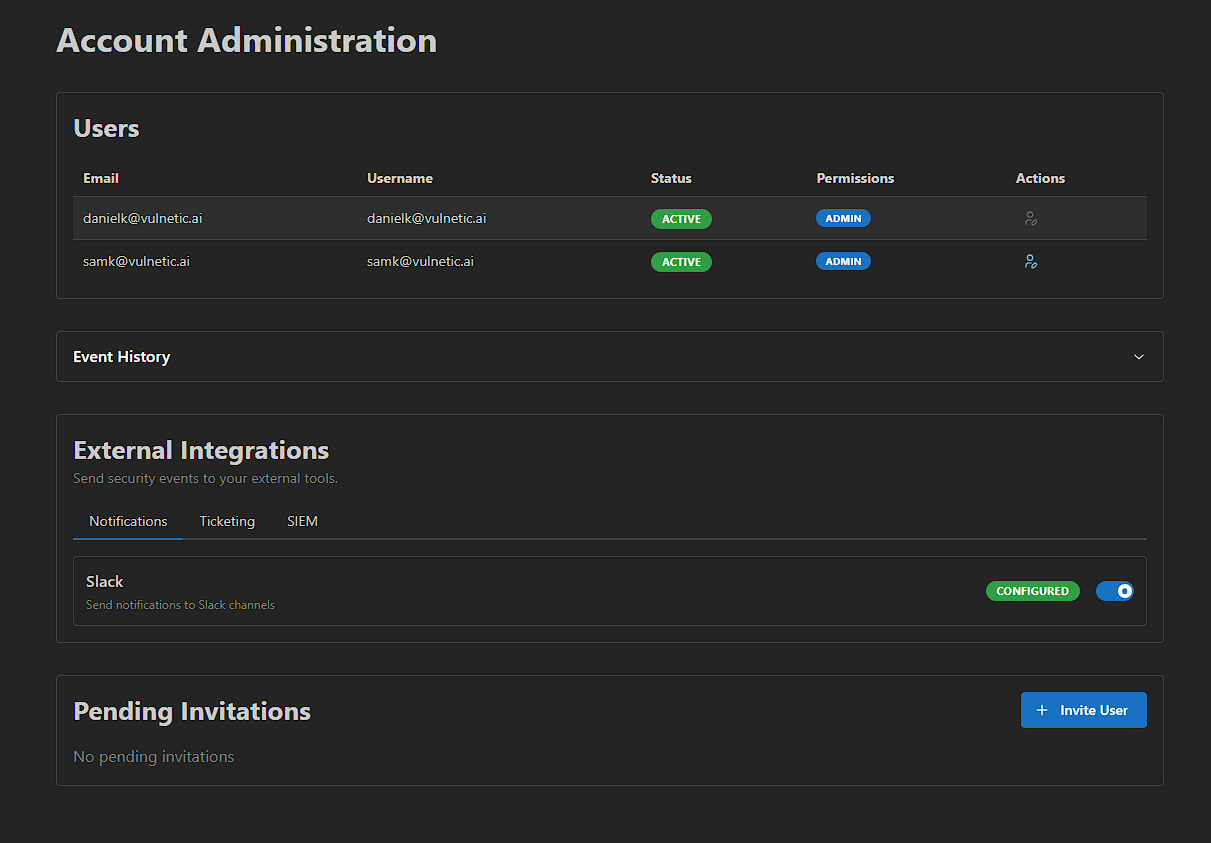
Enterprise accounts provide robust user and access management capabilities to support team collaboration.
User Invitations
Invite team members to your organization via email. New users receive an invitation link to join your workspace and begin collaborating on security assessments.
Access Control
Control what each user can access within your organization. Assign permissions such as:
- Read-only access - Users can view sessions and reports but cannot make changes
- Report restrictions - Prevent users from generating reports
- Full access - Grant complete access to all features
Session Handover
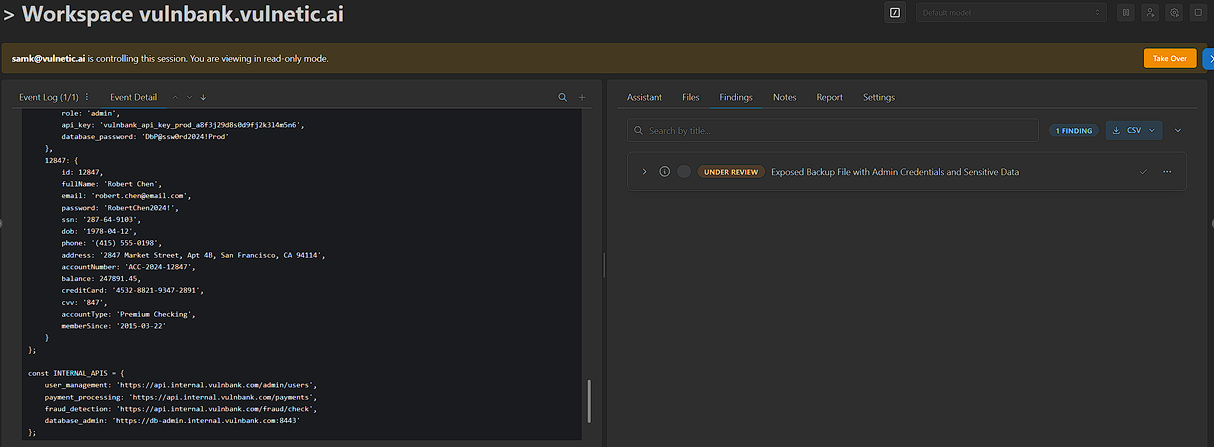
Transfer active sessions to other team members. This is useful when transitioning work between analysts or escalating findings to senior team members.
Executive Reports
Executive reports provide an easy deliverable for non-technical leaders. Automatically generate high-level summaries that distill assessment findings into clear risk narratives, business impact statements, and strategic recommendations, ready to share with C-suite stakeholders and board members without technical jargon.
Integrations
Sable integrates with your existing tools and workflows. All integrations are configured from the External Integrations section on the Account Administration page.
Jira
When a finding is validated, it is automatically reported to your Jira project as a ticket. This streamlines your vulnerability management workflow by creating actionable items directly in your existing issue tracking system.
Setup Instructions:
- Navigate to the Account Administration page
- Under External Integrations, click the Ticketing tab and select Jira
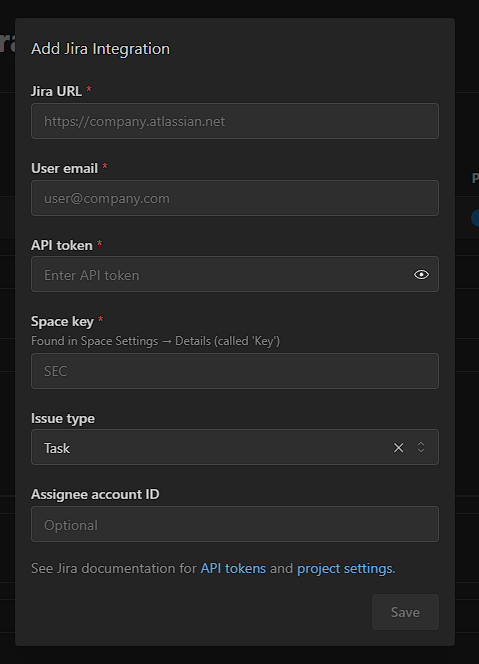
- Fill in the required fields:
- Jira URL - Your Atlassian instance URL (e.g.,
https://company.atlassian.net) - User email - The email associated with your Jira account
- API token - Your Jira API token (see Jira documentation for setup instructions)
- Space key - Found in Space Settings → Details (called 'Key')
- Issue type - Select the type of issue to create (e.g., Task, Bug)
- Assignee account ID - (Optional) Auto-assign tickets to a specific user
- Jira URL - Your Atlassian instance URL (e.g.,
- Click Save
Splunk
Stream findings directly to Splunk for real-time security monitoring and alerting. Keep your security operations center informed with continuous data feeds from your penetration testing activities.
Setup Instructions:
- Navigate to the Account Administration page
- Under External Integrations, click the SIEM tab and select Splunk
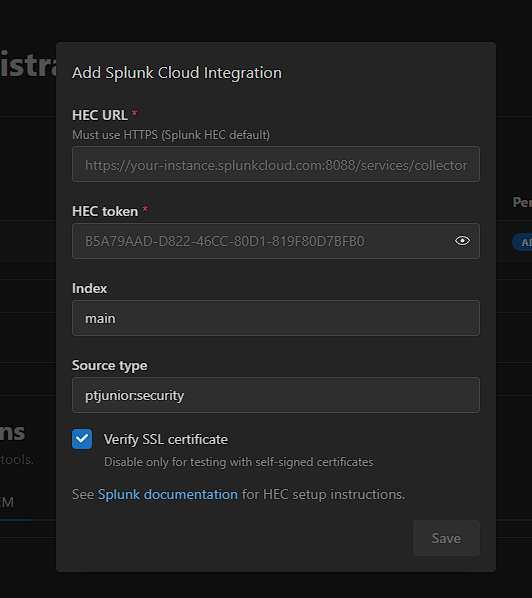
- Fill in the required fields:
- HEC URL - Your Splunk HTTP Event Collector URL (must use HTTPS, e.g.,
https://your-instance.splunkcloud.com:8088/services/collector) - HEC token - Your Splunk HEC token
- Index - The Splunk index to send events to (e.g.,
main) - Source type - The source type for events (e.g.,
sable:security) - Verify SSL certificate - Enable for production environments; disable only for testing with self-signed certificates
- HEC URL - Your Splunk HTTP Event Collector URL (must use HTTPS, e.g.,
- Click Save
Slack
Get instant notifications in your Slack channels when new vulnerabilities are discovered. Keep your team informed in real-time without leaving your communication platform.
Setup Instructions:
- Navigate to the Account Administration page
- Under External Integrations, click the Notifications tab and select Slack
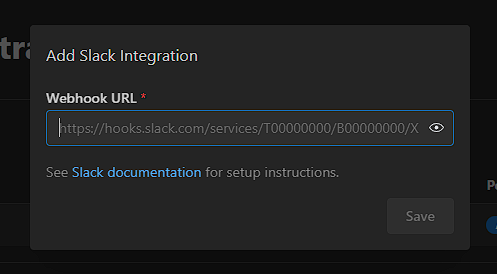
- Enter your Webhook URL (see Slack documentation for setup instructions)
- Click Save
Custom integrations are also available for enterprise customers with specific requirements.
White Labeling
Enterprise users can customize their security assessment reports with their own company logos and names. This allows you to deliver professional, branded reports to your clients.
Creating a White Label
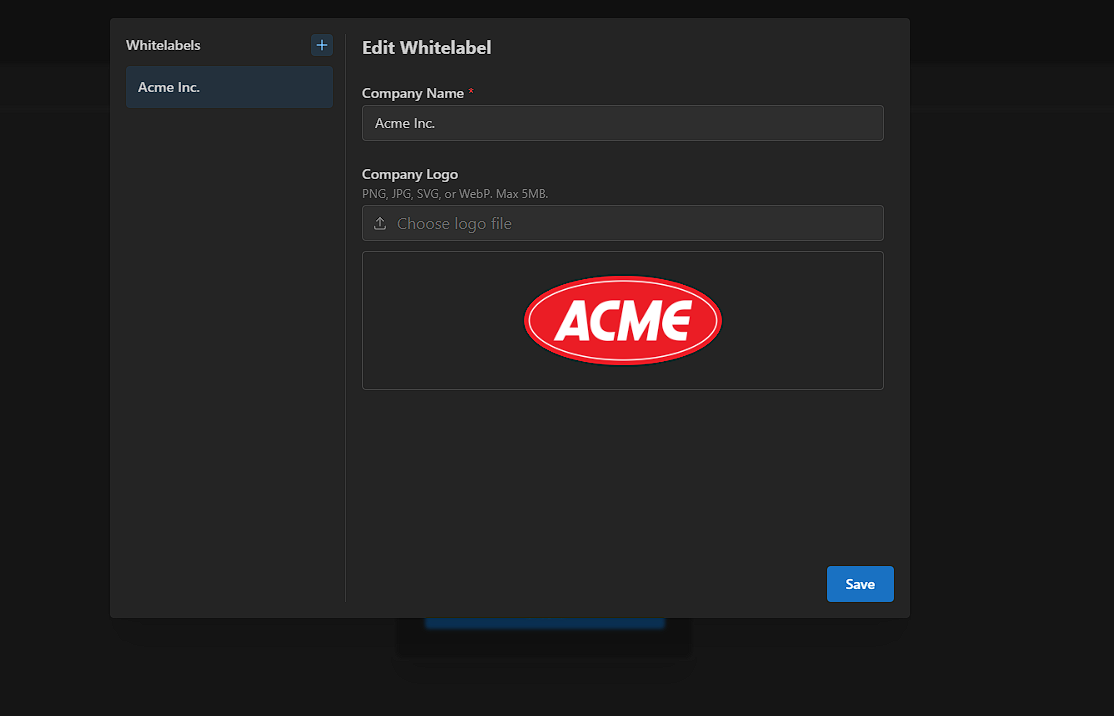
Navigate to the Whitelabels section and click the + button to create a new white label. Enter your company name and upload your company logo (PNG, JPG, SVG, or WebP, max 5MB).
Branded Reports
Once configured, your security assessment reports will feature your company branding, including your logo and company name on the cover page.